Choosing the right Touch Screen Device is not simply a matter of selecting the largest display or newest model. The best choice depends on how people will use it, where it will operate, and what results it must deliver. A retail counter needs bright visibility, quick response, and easy cleaning. A warehouse device requires glove-friendly input, strong protection, and dependable wireless performance. A tablet for field work may need sunlight readability, long battery life, and a secure grip.
This guide examines the practical details behind a reliable purchase. It considers screen size, touch sensitivity, operating system, durability, connectivity, accessibility, and total ownership cost. Real-world testing matters. A screen that responds well in a quiet office may struggle with wet fingers, protective film, or winter gloves. Small differences can become daily frustrations. They matter.
Manufacturer specifications provide useful evidence, but they do not tell the entire story. Independent reviews, warranty terms, service availability, and user feedback should also influence the decision. Some claims sound impressive. They still need checking. I have found that buyers often overlook mounting options, replacement costs, and software compatibility. That mistake can turn a seemingly affordable Touch Screen Device into an expensive compromise.
The following sections offer a clear framework for comparing devices with greater confidence. They also highlight common assumptions that deserve reconsideration. No device is perfect. The right model is the one that fits its environment, users, workload, and long-term expectations.
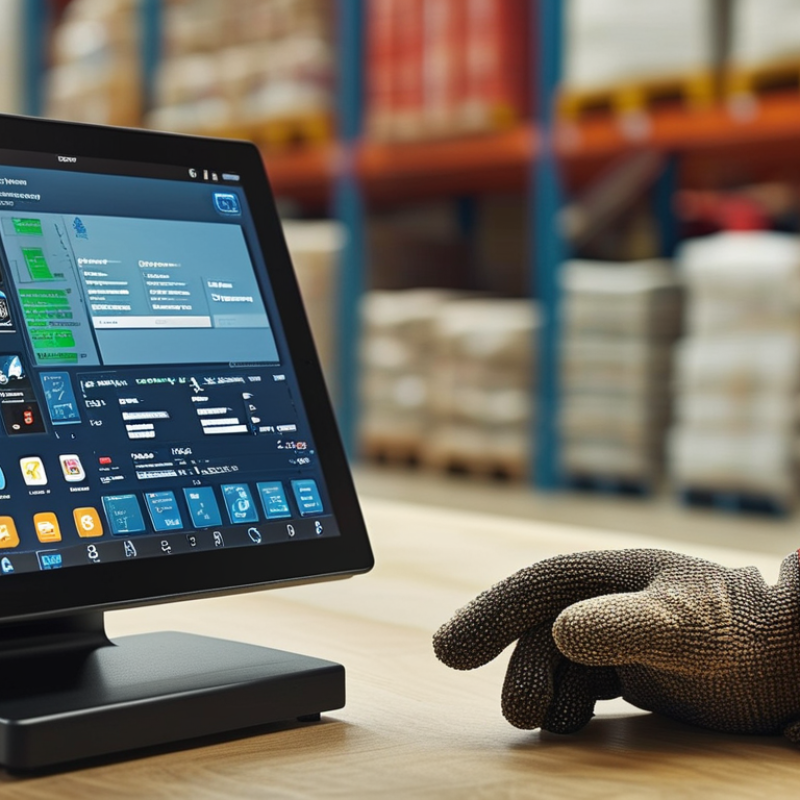
How to Choose the Right Touch Screen Device?
Start with the use case, not the product catalogue. A 10-inch screen suits a countertop interface viewed from about 50–70 centimeters. A warehouse panel may need 15–22 inches when operators stand 1–1.5 meters away. SMPTE Engineering Guideline EG 18-1994 uses a 30-degree horizontal viewing angle as a useful reference. At 1.5 meters, that can point toward a screen roughly 32–40 inches wide, depending on the interface layout. The calculation is simple. Human habits are not.
Brightness matters just as much. For bright indoor spaces, transport areas, or sheltered outdoor locations, specify at least 500 nits, measured in the intended operating mode. ISO 9241-303 stresses readable displays under realistic viewing conditions, not showroom settings. Field checks should include overhead LEDs, window glare, fingerprints, and a user wearing safety glasses. A 500-nit panel can still fail when its cover glass reflects a sunny doorway. Anti-glare treatment and stable contrast deserve equal attention.
Test the device at the real distance. Place critical buttons where an arm naturally reaches, then check text at the user’s farthest position. I have seen teams choose larger screens and create slower workflows. Bigger is not automatically clearer. Treat 500 nits as a baseline, not a guarantee, and record the lighting conditions during evaluation.
| Use Case | Typical Viewing Distance | Recommended Screen Size | Minimum Brightness | Suggested Resolution | Touch Technology | Key Selection Considerations |
|---|---|---|---|---|---|---|
| Handheld inventory, field service, and mobile inspection | 30–60 cm | 5–8 inches | 500–700 nits | At least 1280 × 720 | Projected capacitive touch | Choose a compact device with glove compatibility, readable text, strong battery life, and a display sized for one-handed operation. |
| Point-of-sale, ticketing, and self-service kiosks | 45–90 cm | 10–15 inches | 500–800 nits | 1920 × 1080 preferred | Projected capacitive touch | Prioritize fast response, wide viewing angles, easy-to-clean glass, and a screen layout with large buttons and clear status feedback. |
| Control panels for machinery and production lines | 60–120 cm | 12–19 inches | 500–1000 nits | 1920 × 1080 preferred | Projected capacitive or resistive touch | Consider operation with gloves, accidental-touch prevention, durable cover glass, and mounting options suited to the operator’s standing position. |
| Medical carts, diagnostic interfaces, and clinical documentation | 50–100 cm | 15–22 inches | 500–700 nits | 1920 × 1080 or higher | Projected capacitive touch | Use an easy-to-disinfect surface, low-glare treatment, accurate touch input, and sufficient pixel density for charts, labels, and detailed records. |
| Vehicle, warehouse, and logistics terminals | 60–120 cm | 7–15 inches | 700–1200 nits | 1280 × 800 minimum | Projected capacitive or resistive touch | Higher brightness helps overcome daylight and reflections. Also evaluate vibration resistance, temperature range, sealed edges, and operation with work gloves. |
| Outdoor information kiosks and public directories | 1–2 m | 21–32 inches | 1000–1500 nits | 1920 × 1080 or higher | Projected capacitive touch | Use an anti-glare surface, wide viewing angle, weather protection, vandal-resistant glass, and brightness control for changing ambient light. |
| Digital signage with interactive content | 1.5–3 m | 32–55 inches | 500–1000 nits | 1920 × 1080 minimum; 3840 × 2160 for detailed content | Infrared or projected capacitive touch | Select a large viewing area, high contrast, strong viewing-angle performance, and touch targets large enough to use comfortably from a standing position. |
| Conference-room collaboration and presentation displays | 1.5–5 m | 55–86 inches | 500–800 nits | 3840 × 2160 recommended | Infrared or projected capacitive touch | Prioritize large text, low reflection, multi-touch support, accurate edge detection, and a viewing angle wide enough for participants seated around the room. |
| Engineering, design, and data-visualization workstations | 50–90 cm | 24–32 inches | 500–600 nits | 2560 × 1440 or 3840 × 2160 | Projected capacitive touch | Higher resolution improves fine detail. Look for accurate color reproduction, ergonomic adjustability, low-glare glass, and precise multi-touch input. |
Practical rule: A brightness rating of at least 500 nits is a useful baseline for many indoor professional applications. Outdoor, vehicle-mounted, or strongly sunlit installations generally require higher brightness, effective anti-glare treatment, and automatic brightness control.